
Install and setup
Castor is a Shopify app that puts popups, bars, banners, and product widgets on your store, keeps the signups they collect, and gives you a desk to edit your catalog. It runs inside Shopify Admin and is billed on your Shopify invoice.
- 1
Install from the Shopify App Store
Shopify asks you to approve the permissions. Castor reads products, themes, and, if you allow it, orders. Nothing is written to your theme code.
- 2
Open Castor in Shopify Admin
The app opens inside Admin under Apps. The left menu lists Overview, Popups, Widgets, Library, Studio, Products, Contacts, and Settings.
- 3
Finish setup
Four steps: Products, Popups, Turn popups on, Add a widget. Each step opens the right Shopify screen and checks itself when you come back.
- 4
Turn one on, or place the block
Popups and Widgets both open with a Ready to go set, already filled with your products and store name. A popup still needs the Castor App embed. A widget still needs the Castor Widgets block.
Overview
The first screen after you sign in. It shows views, signups, and orders next to all store sales for the same period.
- Views, signups, and orders next to all store sales for the same period.
- Open carts, signups, and the popups and widgets that brought the most.
- A Setup button until every step is complete.
- Stat tiles link straight into Popups, Widgets, and Contacts.
Every number is a store total. Castor never shows a profile of one shopper, and the dashboard has no per-visitor view.
Setup
A short, guided setup that opens from the Overview. It stays open until the four steps are done, and you can come back to it any time.
| Step | What it does | How it checks itself |
|---|---|---|
| Products | Pulls your catalog from Shopify so popups and widgets can show real products. Refresh from Shopify brings in anything added since. | Shows the product count once the pull finishes. |
| Popups | Picks the welcome and exit popups for your store type and shows a live preview with your products. | Done when at least one popup is saved. |
| Turn popups on | Opens the Castor App embed in the Shopify theme editor. One toggle, then Save. | Castor reads the theme and marks the step when the embed is on. |
| Add a widget | Opens the theme editor on the page you choose with the Castor Widgets block ready to place. | Done when the block is found in the theme. |
Popups
Welcome codes, exit offers, cart reminders, announcement bars, and toasts. One list, each row with its views, signups, and orders.
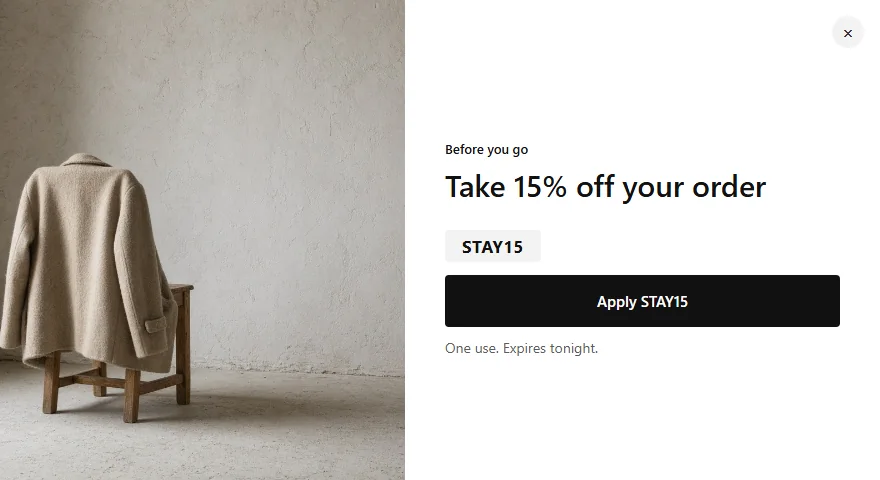
Creating one
Start from Ready to go, from a Library template, or from a blank design in Studio. The editor has two steps: Design, where you pick and adjust the creative, and Logic, where you say when it shows and to whom.
Logic
| Setting | Options |
|---|---|
| When | As soon as the page opens. After a wait you set in seconds. After they scroll a percentage you set. When they try to leave. After they add to cart. When the cart changes. |
| Where | The whole store, or Home, Cart, Checkout, After purchase, all product pages, all collection pages, content pages, or specific products and collections from your catalog. |
| Who | Everyone, new visitors, returning visitors, high intent (on a product or cart page), has cart items, or empty cart. A minimum cart total can be added. |
| How often | Once ever, once this visit, once each day, or a number of times in a period you set. Or no limit. |
| Schedule | A start and end date, and a live countdown that ends with the offer. |
| A/B test | On Startup and Grow: two designs with a traffic split. Views, signups, and orders are counted per version. |
Coupons
A popup can show a fixed code you already have, or generate a one-use Shopify discount at the percent you choose when the shopper signs up. Generated codes are created in Shopify Discounts when you save the popup, so they work at checkout without any extra step.
Turning it on
Popups run through the Castor App theme embed. Turn it on once in the theme editor and every popup you switch on in Castor appears on the store. Switch a popup off in Castor and it stops showing on the store.
Widgets
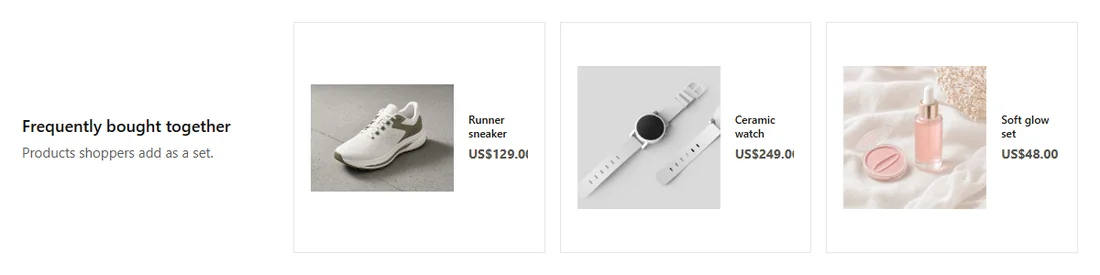
Product rows and bars that live in the page instead of on top of it. Filled from your catalog and, after you approve orders at install, from what actually sells together.
| Widget | What fills it |
|---|---|
| Related products | Products close to the one on the page, by type, tags, and description. |
| Frequently bought together | Products that appear in the same orders as the one on the page. |
| Best sellers | Units sold in the recent window. |
| Trending | Products gaining views and sales faster than the rest. |
| New arrivals | The newest products in your catalog. |
| Cart upsell | Add-ons for what is already in the cart. |
| Free-shipping bar | Cart total against the goal you set, updated as the cart changes. |
| Banners and hero | A Library or Studio design at a fixed size, placed anywhere a block can go. |
Placing a widget
Each widget has a Place button that opens the Shopify theme editor on the right template with the Castor Widgets block. Drag it where you want and Save. If you prefer, copy the shortcode and paste it into any Liquid section or page.
Widgets remember their height so the page does not jump while they load. They are shown only when the catalog has enough active products to fill them. If Theme Editor says Castor is loading your products, open Products, press Refresh from Shopify, and reload the editor.
Library
More than 140 finished designs, previewed in your brand colors and with your products before you pick one.
Categories
Popups, Hero, Products, Bars, Toasts, Banner ads in the standard ad sizes, and Social. The Ready to go filter shows the designs that are complete with real copy and photos, so you can use them exactly as they are.
What each button does
| Button | Result |
|---|---|
| View | Opens the design at full size with your products. |
| Use | Adds it to Popups or Widgets, depending on the design, and takes you there to finish the Logic. |
| Edit | Copies the design into Design Studio so you can change text, photos, and colors. |
| Shortcode | For widget designs: creates a widget and copies a shortcode you can paste into the theme. |
| How it works | Explains what the design is for and where it normally goes. |
Saved Templates holds the designs you saved from Studio. They stay in your account and are not on the store until you use them.
Design Studio
A canvas editor for popups, bars, banners, and product rows. Exports the exact HTML the storefront shows, so what you see is what the shopper sees.

Elements
| Group | Elements |
|---|---|
| Text | Heading, Text, Button, Badge with coupon code, Countdown, Trust line, Email capture form, Close button. |
| Media | Image with AI background removal, Gallery, Slider, Shape, Divider, Free-shipping meter. |
| Products | Product title, Product price, Product image, Product card grid, Search box, Social proof line, Urgency line. |
Every element has layout, color, size, and alignment controls. Product elements pick a product, a collection, or let the storefront fill them with the product on the page. Buttons and badges can open a link, apply a coupon, or add to cart.
Brand kit
Set your font, colors, and logo once. Library previews and new designs use them automatically.
AI
Describe a design in a sentence and Studio drafts it. Select a design and ask for a restyle. Image elements can have their background removed or replaced. Each action costs AI coins, which every plan includes.
Saving
Save puts the design in Saved Templates. Save and use does the same and then starts the popup or widget for you, so the next screen is the Logic step.
Product desk
Your catalog in one table, with the edits Shopify makes slow: bulk status, SEO rewrites, prices, and new pictures. Changes go back to Shopify only when you press Send.
Pull, edit, Send
- 1
Pull products
Copies your Shopify catalog into Castor. Castor also syncs on its own after install.
- 2
Edit
Change title, description, price, compare-at, cost, status, tags, vendor, type, SEO title and description, and the main photo. Check several rows for a bulk status or tag change.
- 3
Send to store
A dry run first lists what will change. Confirm and Castor writes it to Shopify. Nothing is written without that confirmation.
Export
Excel and Google Sheets CSV exports the whole catalog or the checked rows. Prices are in dollars. Columns: id, title, handle, status, product_type, vendor, price, compare_at, cost, sku, inventory, image, image_alt, description, meta_title, meta_description, tags, product_link, seo_score, units_sold, revenue, attributed_units, attributed_revenue. There is also a JSON export, a sales report, server backups, and Google, Meta, and Amazon feeds.
Import
- 1
Pick a file
A CSV, a ZIP with a CSV and photos, or a folder. The export above imports back as is.
- 2
Map the columns
Castor suggests a mapping from your headers and shows the first rows. Title is the only required column.
- 3
Review
A dry run lists each row as create, update, or skip, and how many photos matched.
- 4
Confirm
Updates keep the fields you did not include, including variants, galleries, and sales. New rows are created as active unless the file says otherwise.
Contacts
Every signup a popup collected, with the popup it came from and the code it received. After you approve orders at install, Castor can mark the ones who bought.
- Unlimited contacts on every plan.
- Export the whole list to CSV at any time.
- Turn on Add to Shopify customers and each signup is created or updated in Shopify with marketing consent recorded.
- Shoppers who ask you to delete their data can be removed from the list, and Shopify redaction requests are handled automatically.
Support
The Support button at the bottom right of every screen has two doors.
Instant Support
An assistant that knows your store's live setup: how many popups are on, whether the theme embed and the Widgets block are in place, how many products are pulled, and which page you are looking at. Ask a question in plain words and it answers with the step to take and a button that opens the right screen. It can also edit a product for you when you ask.
Custom Support
A ticket to the Castor team. Pick a topic, write what happened, and send. Your shop, the page you were on, and your browser details are attached so you do not have to describe them. Replies go to the email you give, within one business day — same day on Grow.
Plans and AI coins
Three plans, all billed by Shopify. Free is 3 popups and 3 widgets on a live store. Startup takes the live cap off and adds A/B tests. Grow is 3,000 coins a month and same-day help. The Plan screen shows your current plan, coins left, and how many popups and widgets are on. Shopify shows its approval page before any charge.
| Plan | Price | Popups | Widgets | AI coins | A/B | Help |
|---|---|---|---|---|---|---|
| Free | $0 | 3 live | 3 live | 100 | — | One business day |
| Startup | $19 | Unlimited | Unlimited | 1,000 | Yes | One business day |
| Grow | $49 | Unlimited | Unlimited | 3,000 | Yes | Same day |
Contacts, views, visitors, every Library design, Design Studio, targeting, schedules, one-use codes, translations, and CSV export are included on every plan. A/B tests start on Startup. AI coins pay for AI drafts, restyles, SEO rewrites, and new product pictures.
Data and privacy
Castor processes store data so the store can show offers and keep a contact list. It does not sell data and does not follow a shopper to other stores.
- The storefront script sets no cookies. It uses the browser's own storage for that store only, to avoid showing a closed popup again and to count a view once.
- Merchants see counts. There is no per-shopper profile in the dashboard.
- Shopify's customer data request, customer redaction, and shop redaction webhooks are handled automatically.
- Orders are on the install list. We use units and revenue only, not a shopper profile.
The full privacy policy and terms of service spell out each item.
Uninstall
Remove the app from Shopify Admin like any other. Popups and widgets stop at once, and the theme is exactly as it was.
Export your contacts and catalog first if you want to keep them. Store data is deleted when Shopify sends the shop redaction request after uninstall.