
Product
- PopupsWelcome, exit, and cart offers that ask once.
- Bars and bannersFree-shipping bars, heroes, and countdowns.
- Product rows and toastsFilled from your own catalog.
- Design StudioClick the words, change them, save.
- Targeting and A/B testsWhen, where, who — and A/B on Startup and Grow.
- Unlimited contactsEvery signup kept, on every plan.
- Product deskBulk edits, SEO, and product pictures.
Case studies
- FashionWelcome the drop, then show the rest of the look
- BeautyShow the rest of the routine next to the serum
- HomeA code on the way out, bestsellers on the way in
- Food and drinkA shipping goal, and a welcome code
- TechShow the case and cable with the headphones
Free plan. Billed by Shopify when you upgrade.
Tutorial
Your first popup live in five minutes.
- 1
1 min
Install from the Shopify App Store
Open the Castor listing and press Install. Shopify shows the permissions Castor asks for and you approve them once. Nothing is written to your theme code.
The install list includes orders, customers, and languages. Approve the full list once.
What you will see
- A Shopify page listing the permissions: products, inventory, themes, discounts, and the storefront script.
- After you approve, Castor opens inside Shopify Admin on the Overview screen.
- 2
1 min
Pull your products
The setup guide opens on its own the first time. The first step pulls your catalog from Shopify so popups and widgets can show real products.
Later, Products in the left menu has Refresh from Shopify for anything you add after this.
What you will see
- A progress line while products arrive, then a short row of your own products and the product count.
- If the store is not linked yet, a Reconnect button. Press it, approve, and the pull starts.
- 3
1 min
Pick your popups
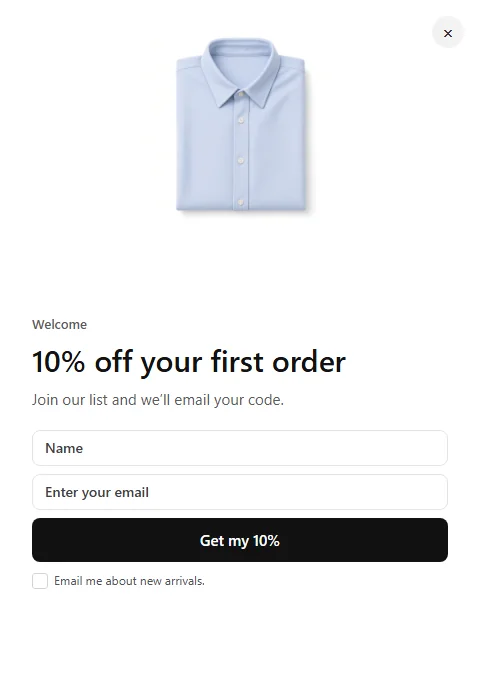
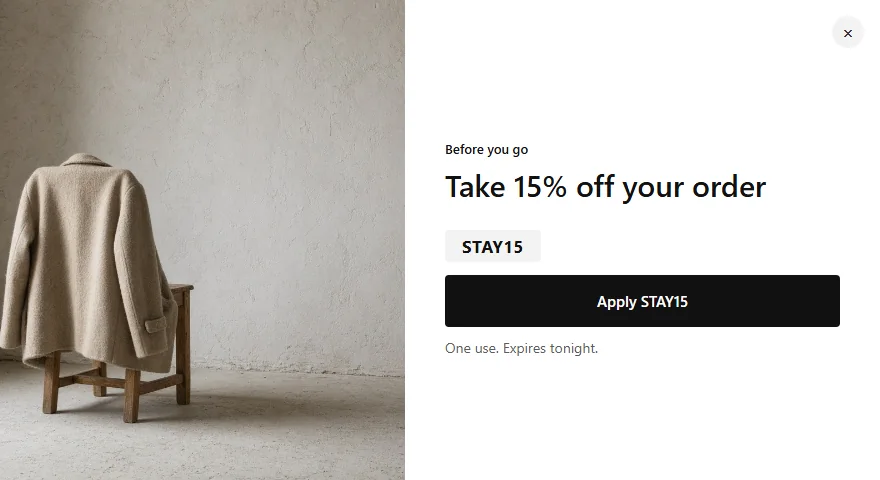
Castor shows a welcome popup, an exit popup, and a free-shipping bar for your store type, each with a live preview that uses your products and store name. Pick the ones you want.
Every word can be changed afterwards in Design Studio. Nothing is on your store yet.
What you will see
- Each card is a toggle. Click anywhere on the card to add or remove it.
- If a popup gives a discount code, Castor creates that code in Shopify Discounts when it saves, so it works at checkout.
- 4
1 min
Turn popups on in your theme
Popups run through one theme app embed called Castor App. This step opens your theme editor on the App embeds panel with Castor App ready to switch on.
Popups and bars use this embed. Widgets use the Castor Widgets block in the next step. Turn the embed off and popups leave; the theme files stay as they were.

What you will see
- The Shopify theme editor in a new tab, with the Castor App toggle. Turn it on and press Save in the top right.
- Back in Castor, the step checks the theme and marks itself done.
- 5
1 min
Place one widget
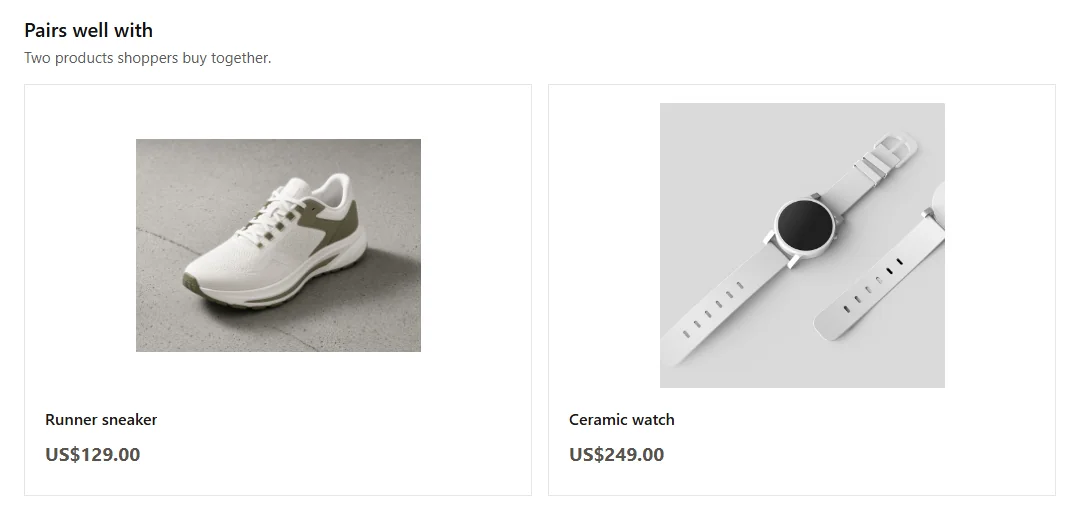
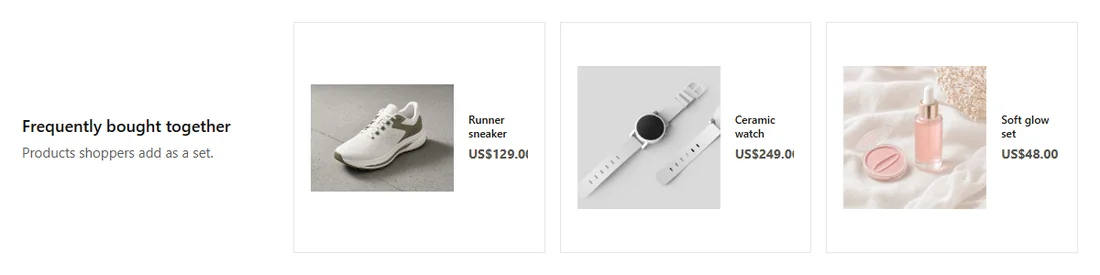
Widgets are product rows that sit inside a page: bought together on product pages, a row on the home page, or an add-on in the cart. Choose the page and Castor opens the theme editor with the Castor Widgets block already on it.
A widget with no products to show stays hidden on the store until products match. It never shows an empty frame.
What you will see
- The theme editor on the page you chose, with the block selected. Drag it where you want it and press Save.
- The block shows the widget's real design in the editor, not just a name.
- 6
1 min
Check it on your store
Open your storefront in a private window so you count as a new visitor. The welcome popup shows under its rule, the exit popup waits for the pointer to leave, and the widget sits where you placed it.
Not seeing it? Use a private window. Rules like once a day and new visitors only are already working on your normal browser.

What you will see
- On Overview, views and signups for each popup and widget start to appear.
- Each popup has a close button and stays away for the time you set after it is closed, so the same shopper is not asked twice.
After the first five minutes
Four things to do next.
Change the words
Open a popup, press Edit design. Click any line in Design Studio and type. The photo, colors, and layout come from your brand kit.
Read in the guideChoose who sees it
The Logic tab holds when, where, who, and how often. Change one setting and save; the store updates on the next page load.
Read in the guideMake one with AI
Create with AI asks what the popup should do, shows the designs that fit, and writes the words from your offer. One coin, refunded if it fails.
Read in the guideOverview: views, signups, orders
Overview shows views, signups, and orders next to all store sales, with the popups and widgets that brought the most.
Read in the guideIf something does not show
Almost every "nothing shows" comes down to one of these. Instant Support inside the app checks them for you and opens the right screen.
The theme embed is off
Open Popups. If the banner at the top says the Castor App embed is off, press Turn on. It opens the theme editor on the right panel; switch it on and Save. Popups and bars need this embed. Widgets need the block below.
The widget is missing or empty
Place the Castor Widgets block from Widgets, then Save. If Theme Editor says Castor is loading your products, open Products, press Refresh from Shopify, and reload the editor. An empty catalog stays hidden on the store — it never shows a blank frame.
The popup itself is off
Each popup has an On/Off switch on its row. Off popups stay saved but never show. Free includes three live popups; saved ones that are off do not count.
The rule already ran for you
Once a day, once ever, and new visitors only all apply to you too. Open the store in a private window, or change How often on the Logic tab while you test.
Still stuck? Open Support in the bottom right of the app and choose Custom Support. Attach a screenshot and the team sees it in Admin. Or write to hello@castorapp.com.